Using EMHealth

Dashboards

Once you login into Grafana at http://localhost:3000, you may want to adjust the default preferences. Navigate to Administration > General > Default preferences where you can set the interface theme, week start etc. We recommend to set Home Dashboard to TEM/Fleet overview.

At the moment, all dashboards are grouped into TEM, SEM and DB performance folders.

TEM dashboards

Overviews

Fleet overview

This is the main dashboard, which can display multiple instruments simultaneously. Key metrics include:

  • Beam Time Pie Chart: Shows the daily average vacuum status of an instrument, including time spent with column valves open or closed, or during cryo-cycling.

  • Utilization Gauge: Indicates the daily average time the instrument spent actively acquiring data on EPU/Tomo.

  • Last Cryo Cycle: Occurred X days ago.

  • Specimen Throughput: Tracks the number of cartridges and cassettes loaded over time.

  • Data Throughput: Displays the number of offloaded movies and total data volume (Falcon cameras only).

_images/dash-overview.png
Productivity

This view shows per-instrument counters for autoloader cartridges/cassettes, acquired images, and EPU/Tomo sessions. The utilization and beam time bar charts provide alternative representations of running acquisition time from the main dashboard.

For each EPU session, we track:

  • Session ID

  • Start and End Time

  • Actual Acquisition Time

  • Total Number of Images Acquired

  • Skipped Images Counter

  • Acquisition Speed

  • Error Status (whether the session ended with an error)

For each Tomo session, we track:

  • Session ID

  • Start and End Time

  • Actual Acquisition Time

  • Total Number of Images, Tilt Series, and Search Maps Acquired

  • Acquisition Speed

  • Error Status (whether the session ended with an error)

_images/dash-prod.png
Alerts

Provides instrument summary and recent alerts for each microscope module

_images/dash-alerts.png

Modules

Autoloader

Pressure, axis movements, temperatures, and LN levels are continuously monitored. This view helps you:

  • Estimate the baseline pressure of the autoloader

  • Verify the reproducibility of arm movements

  • Track LN refilling frequency

  • Monitor temperature recovery of the CRT and docker after cassette loading

_images/dash-al.png
Column

This view displays:

  • Buffer cycle status

  • Cryo cycle frequency and duration

  • Lens temperatures

  • IGP vacuum levels and lifetime

  • Optics board errors

_images/dash-column.png
Detectors

Projection vacuum, overall status and sensor temperature for detectors and energy filter are provided

_images/dash-detectors.png
Motion

Tracks motion errors for stage axes and all apertures

_images/dash-motion.png
PC Health

Microscope PC statistics

_images/dash-pc.png
Source

Various parameters for FEG and HT are being monitored

_images/dash-source.png

For developers

Data browser

Mostly used for visualizing raw data from the database

_images/dash-browser.png

Import Alarms

Note

This functionality is currently under development

Universal Error Codes (UECs) or Alarms from an instrument are stored in a database separate from Health Monitor events and can be typically displayed with UEC Viewer on the MPC. You could also install FEI UEC Notifications Exporter and save UECs to XML, but this is not supported by EMHealth. If you have the credentials to access the MSSQL server on MPC, you can import UECs from MSSQL into EMHealth database. To make it work, MSSQL_USER and MSSQL_PASSWORD (in the docker/.env) have to be defined, as well as the server field for each instrument in the instruments.json.

emhealth db -d tem import-uec

Alerting

This functionality is currently under development.

Export data and reporting

You have several options available here:

  1. To export raw data from a panel to CSV/Excel format, select Inspect > Data. The new window allows you to configure export options and download CSV
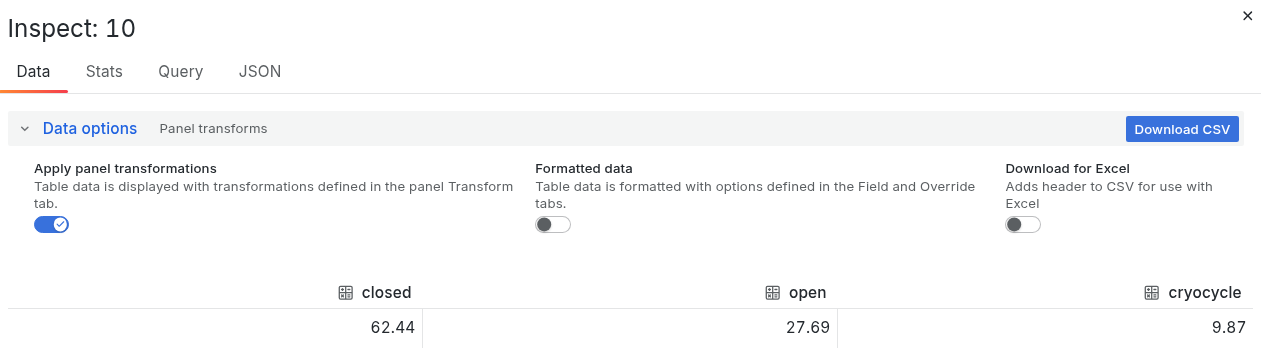
_images/export-csv.png
  1. To render PNG image of a panel, select Share > Share link. In the new window you can customize the image size, then Generate and Download image.
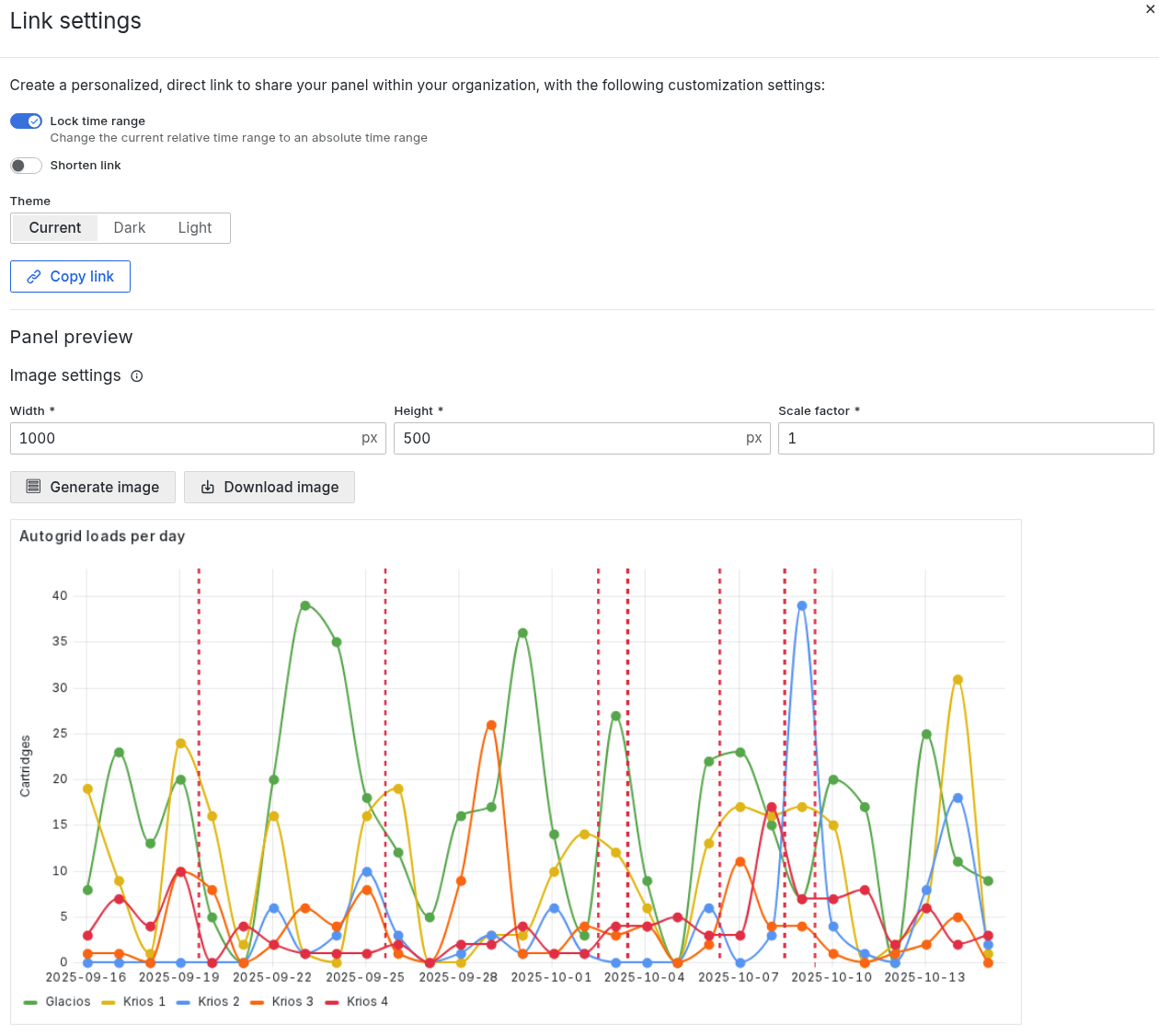
_images/export-png.png